Zone Linking
Zone Linking
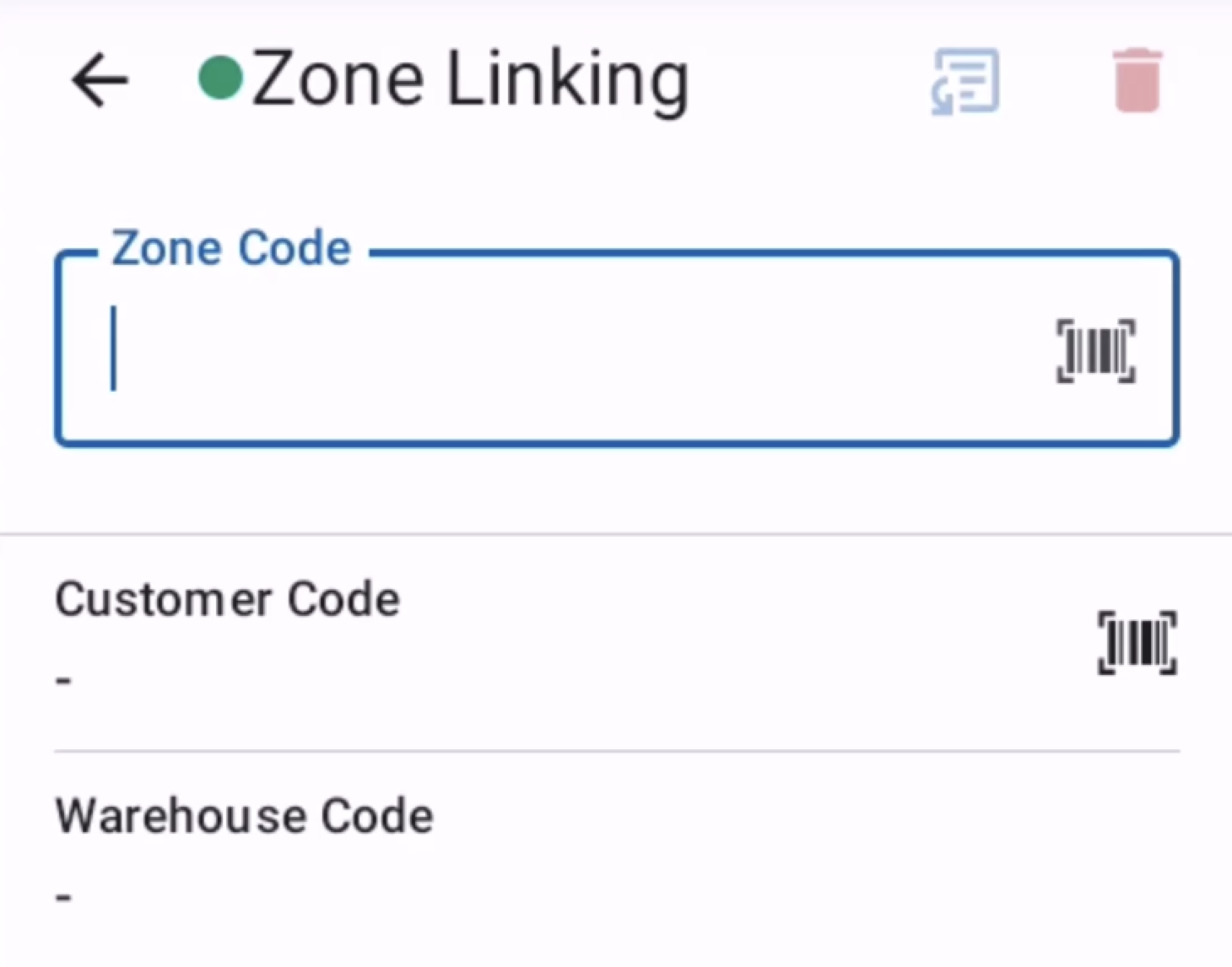
The Zone Linking screen allows users to link physical zones with specific identifiers through a structured data collection process.
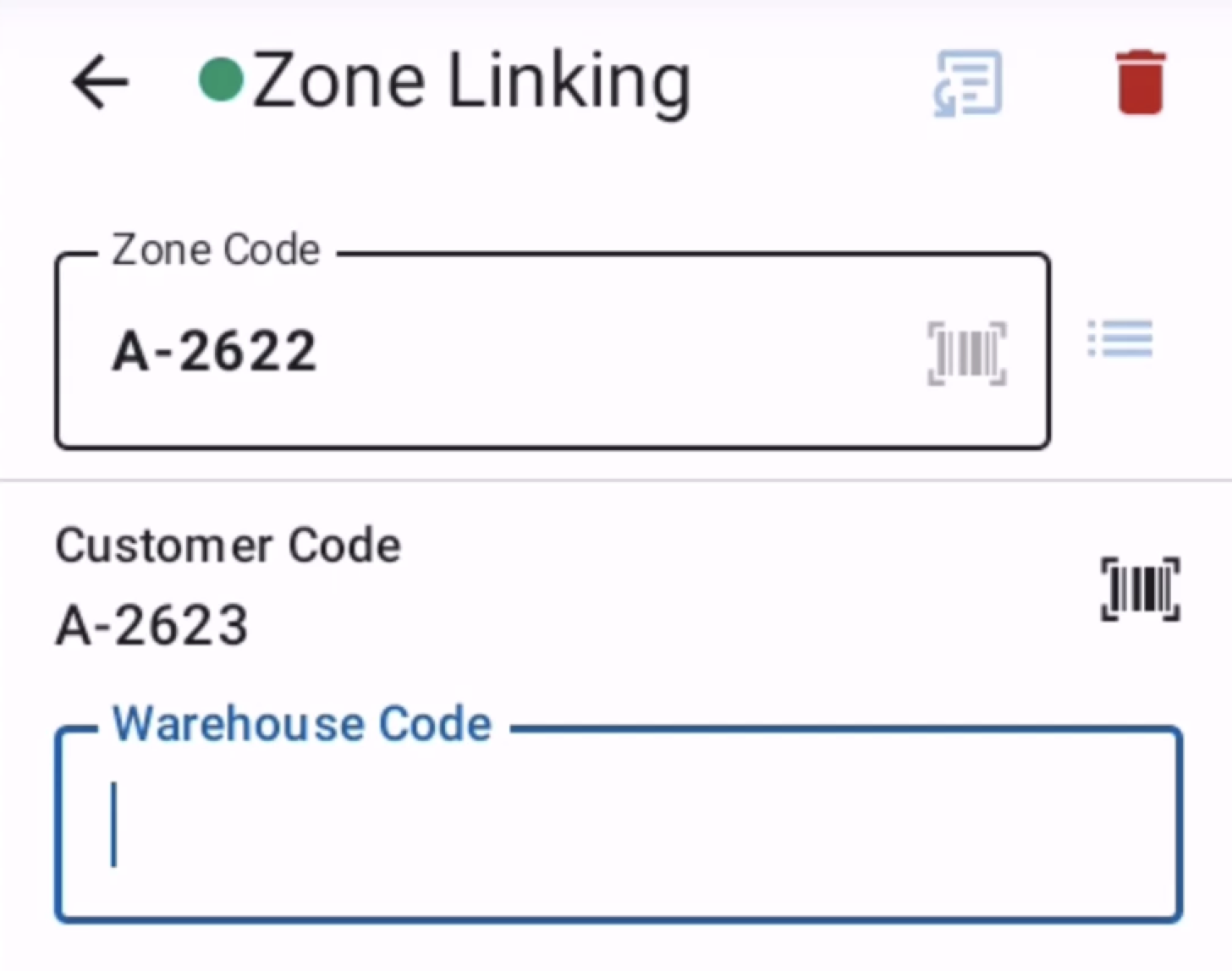
This feature enables users to scan zone identifiers to establish connections between physical and digital zones. It an also allow the user to create virtual zones that are shown in the system but do not physically exist. The screen provides a step-by-step workflow that guides users through configurable linking steps, ensuring accurate zone identification and proper data association for inventory management purposes.
Top bar
- Connection status -> The App contact the server very 10 seconds
 -> Successful server response
 -> Unsuccessful server response
- Name of the current screen
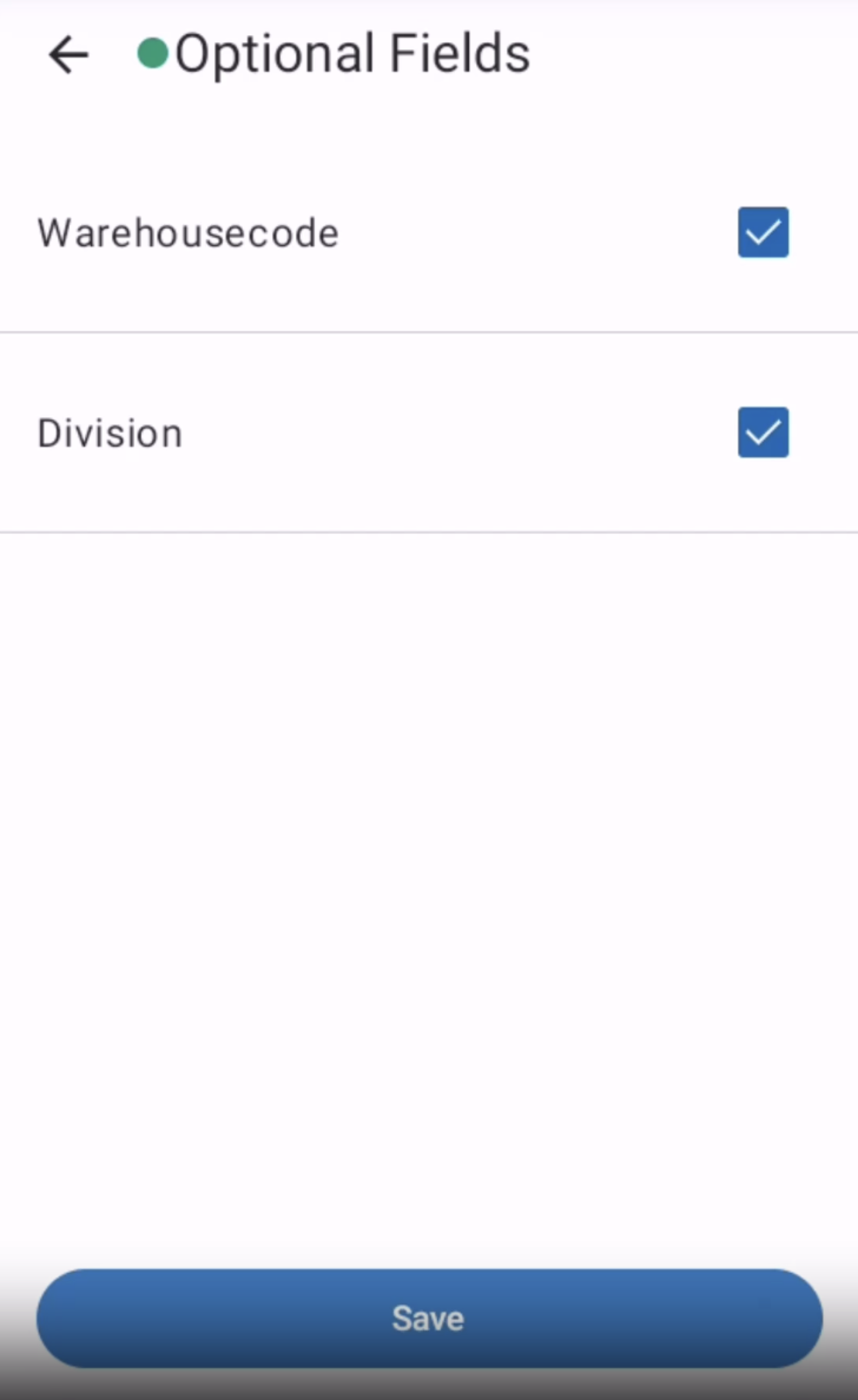
- Optional Fields
 -> allow the user to make optional fields visible. If there is only one field defined the button will enable/disable the field. If there are more than one field defined as optional the selection will appear.
 - The current linking can be discarded in any step before it's submitted

- Reuse the last submitted value
 -> use the last submitted value on this field, without scanning or entering manually
Fields
- Zone Linking Step Field: Dynamic input field that displays the current step in the zone linking process, allowing users to scan or enter zone identifiers, location codes, or other required values.
- Optional Fields Button : Opens the optional steps configuration screen where users can toggle visibility of non-essential zone linking steps based on workflow requirements. These fields are controlled by the Zone Linking Config.
- Zone Information Display: Presents contextual information about the zone being linked, including zone code, description, and any existing associations.
Shortcuts
| Hardware key | Action |
|---|---|
| FN1 | Delete the current linking |
| FN2 | Reuse the last submitted value of this field |
| FN + 1 | Disable/Enable the touch |
| FN + 2 | Open Wifi settings |
| FN + 3 | Open Mobile settings |
| FN + 5 | Decrease brightness |
| FN + 6 | Increase brightness |
| FN + F5 | Open Alternate barcode selection |
| FN + F6 | Open Calculator |
| FN + F7 | Open optional fields selection |
| FN + F8 | Open Side-menu |
Error Messages
- Zone Linking will be discarded: Warns that exiting the zone linking process will result in loss of all progress and data entered during the current linking session.
- Invalid zone identifier format: The scanned or entered zone identifier does not match the expected format pattern defined in the project configuration settings.
- Zone identifier already exists: The zone identifier being linked is already associated with another zone, requiring a unique identifier or confirmation to overwrite existing associations.